
Wireless Enterprise/AdHoc DistributionWireless Enterprise/AdHoc Distribution

My duties of iOS developer include AdHoc deployment. I have to deal with delivery (deployment) adhoc versions to customers iOS-devices. Everything would be fine, but sometimes it’s very hard to explain a person how to install IPA-file on his device (iPhone, iPad and so on). But recently I’ve discovered a stunningly simple way to setup adhoc device using … standard Safari-browser supplied in iOS. In fact, any other browser is also compatible with feature. Installation is preforming in just one click.
Как же долго не мог я себя мотивировать к обновлению блога после новогдних праздников, полтора месяца прошло…
По роду своей деятельности мне приходиться заниматься доставкой (deployment) adhoc версий на iOS-девайсы заказчиков. Все бы ничего, но порой для человека установить IPA-файл на дейвайс становится адовым адом. Да и мне особого удовольствия не доставляет каждый раз усердно объяснять людям, как установить этот самый IPA-файл на свой iPhone/iPad/iPod. Буквально на днях открыл для себя ошеломляюще простой способ установки adhoc на устройство, используя… штатный Safari-браузер , поставляемый в комплекте iOS. На самом деле, любой другой браузер тоже сгодится. Установка происходит в один клик.
First of all I will describe briefly how to install regular IPA, if somebody may be doesn’t know, but if someone knows he may jump directly to a new method description.
So, in order to establish the adhoc-version of the application for a specific device you need:
— Have an AdHoc Distribution Profile, which contains an UDID of the device,
— Build adhoc-version of the application that contains this profile (in xCode, Product -> Archive).
— Send across the resulting IPA to user
— The user runs iTunes.app (or iTunes.exe if on Windows) on his computer, drag IPA file from the Finder window directly to iTunes library. It should appear in Applications
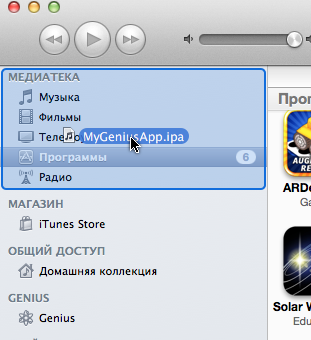
— Then user connects his device to a computer and selects it in the device list in iTunes, changes to the section, find the right program, sets an Apply checkbox and clicks Apply.
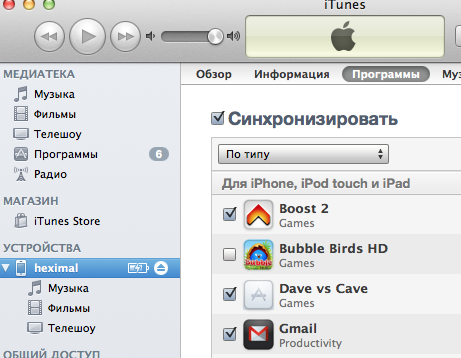
Not the most simple action, even for trained users.
Now a NEW METHOD of easy to installation IPA adhoc in one click without having to connect to a computer and use iTunes (aka Wireles distribution).
First I need to say that this possibility exists only for devices with iOS 4.0 and above. In addition, the possibility of this is not documented properly and not all is still unknown about it. And one more thing. It does not deliver us from adding target devices UDIDs to the profile.
So, what do we need to do? The AdHoc assembly process is standard: choose a platform iOS device, then the menu Product -> Archive, we archive the application then find it in Organizer’e, click Share, a dialog appears
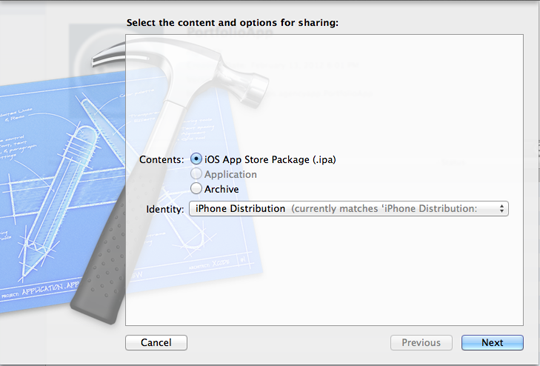
Set the desired AdHoc Identity, click Next, select the pop-up window to save the file and set the checkbox Save for Enterprise Distribution, then fill the form fields.
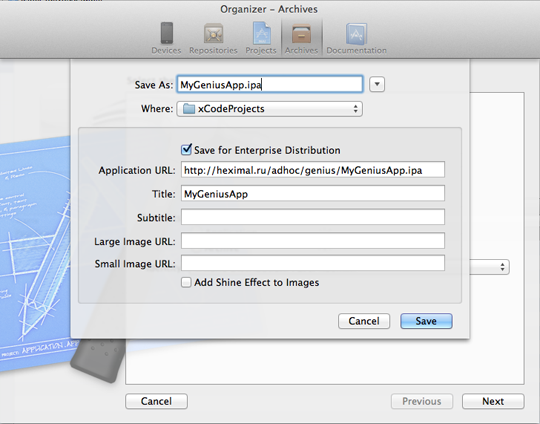
Click Save then get two files:. Ipa and. Plist. The second one contains a manifest — it is mostly for IPA binding to the specified URL. All that remains to do is html-file file download page, for example, the minimalistic html:
<html>
<head>
<title>My Genius Application</title>
</head>
<body>
<a href="itms-services://?action=download-manifest&url=http://hxml.me/adhoc/genius/MyGeniusApp.plist">Install MyGeniusApp</a>
</body>
</html>
The secret is a special link (itms-services ://). Of course, nothing can stop us from decoration of Pages (:
Then put all three files to the server, of course to the desired location (in the example folder http://hxml.me/adhoc/genius), and voila. Open in iOS Safari the page, click link, and …
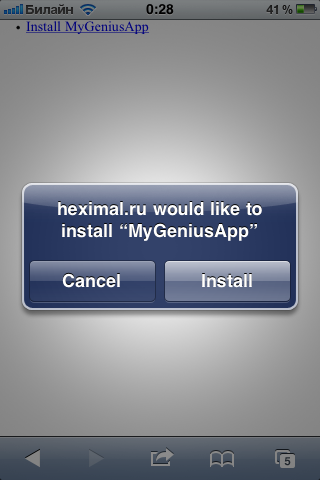
Epilogue. When I’ve been learning the subject I’ve stumbled upon some discontent regarding the functionality of programmers xCode who’s been complaining for need to make Meta handles each time when new adhoc build is done. I’ve found one interesing solution on this blog. The developer has written a generator that can do all of the stuff described above with the input IPA file and URL. His app generates pretty smooth html page.
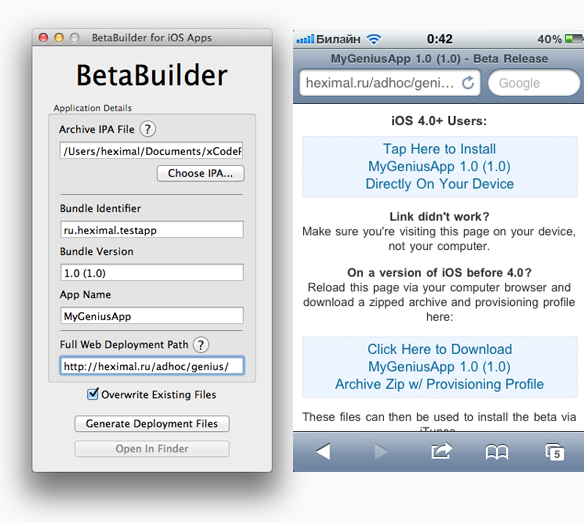
Main feature of this app is that it remembers each BundleID for custom URL, which and we don’t have to copy and paste it over and over again. In addition, the project is open-source.
The idea of the app above can be improved for instance by reproducing its logic on server side, saying, using my favourite PHP. We can even create a kind of tracking system: make upload page, specify the file on disk, put some comments for the build. Press submit and the server script does all the magic.
Для начала, опишу коротко штатный способ установки IPA, если вдруг кто не знает, а кто знает, может сразу переходить к новому способу. И так, чтобы установить adhoc-версию приложения на определеный девайс нужно:
— иметь AdHoc Distribution Profile, содержащий в себе UDID того самого устройства,
— Собрать adhoc-версию приложения, содержащую этот профайл (в xCode, Product -> Archive).
— Передать полученный IPA человеку
— Человек запускает iTunes.app (или iTunes.exe если на Windows) у себя на компьютере, перетаскивает из Finder’a полученный IPA файл в сайдбар тунца прямо в медиатеку. При этом она должна появиться в Программах
— Подключает свой девайс к компьютеру, и выбирает его в списке устройств в iTunes, переходит в раздел Программы, находит нужную программу, отмечает галкой и нажимает Применить.
Не самое простое действие даже для подготовленного человека.
Теперь новый способ, так сказать, простая установка IPA adhoc в один клик без подключения устройства к компьютеру и использования iTunes (aka Wireles distribution).
Стоит оговориться, возможность эта существует только для девайсов с iOS 4.0 и выше. Ко всему прочему, возможность эта не документирована должным образом, но кое-что о ней все-таки известно. А еще, она не избавляет нас от добавления в профайл всех UDID устройств, на которых необходимо запускать AdHoc версии.
И так, что для этого нужно? Весь процесс сборки AdHoc происходит как обычно: выбираем платформу iOS device, далее в меню Product -> Archive, получаем архив приложения, находим его в Organizer’e, нажимаем Share, появляется диалог
Выставляем нужный AdHoc Identity, нажимаем Next, в появившемся окне выбираем путь сохранения файлов и отмечаем галку Save for Enterprise Distribution и заполняем поля формы — думаю, объяснения излишни.
Нажимаем Save, получаем два файла: .ipa и .plist. Во втором содержится некий манифест — он служит по большей части для привязки IPA к указанному URL. Все что остается сделать, это html-файл файл страницы загрузки, для примера минимальный html:
<html>
<head>
<title>My Genius Application</title>
</head>
<body>
<a href="itms-services://?action=download-manifest&url=http://hxml.me/adhoc/genius/MyGeniusApp.plist">Install MyGeniusApp</a>
</body>
</html>
Весь секрет в специальной ссылке (itms-services://). Конечно, ничто не мешает декорировать cтраницу на свой вкус (:
Затем кладем все три файла на сервер, естественно в нужную локацию (в примере в папку http://hxml.me/adhoc/genius), и вуаля. Открываем в айфоновском Safari нужную страницу, жмем линку, и…
Эпилог. Когда изучал тему, наткнулся на некоторое недовольство программеров относительно функциональности xCode, дескать, неудобно каждый раз вносить мету ручками. Вот к примеру, на одном буржуйском блоге нашел интересное решение. Товарищ написал генератор, который может делать все выше описанное, имея на входе IPA файл и URL. На выходе генерит симпатишный html и все запчасти.
Из плюшек — он запоминает для каждого BundleID тот самый URL, который в икскоде нужно каждый раз вставлять. Кроме того, проект open-source.
У меня сразу родилась мысль, что всю эту логику можно воспроизвести прямо не сервере, например, с помощью моего любимого php. Можно даже создать какой-то тракинг на этой основе: делаем страницу аплоада, указываем файл на диске, можем какие-то свои комменты оставить, серверный скрипт делает всю магию, и вот уже на другом конце тестировщик видит, что появился свежий бета-релиз.
Спасибо — помогло и работает! Я использую для установки на свои устройства, чтобу не подключать кабелем каждый раз.
От чистого сердца спасибо!
Мне тоже закачзик прислал ipa файл и я мозг сломал как его поставить. В итоге джелбрекнул айфон и поставил =)) Это третий способ =)